You fine-tuned a model. In the notebook it produces exactly the output you trained for. You put it behind an inference server, pointed your application at it, and now it rambles, ignores the format, never stops generating, or answers like the base model you started from.
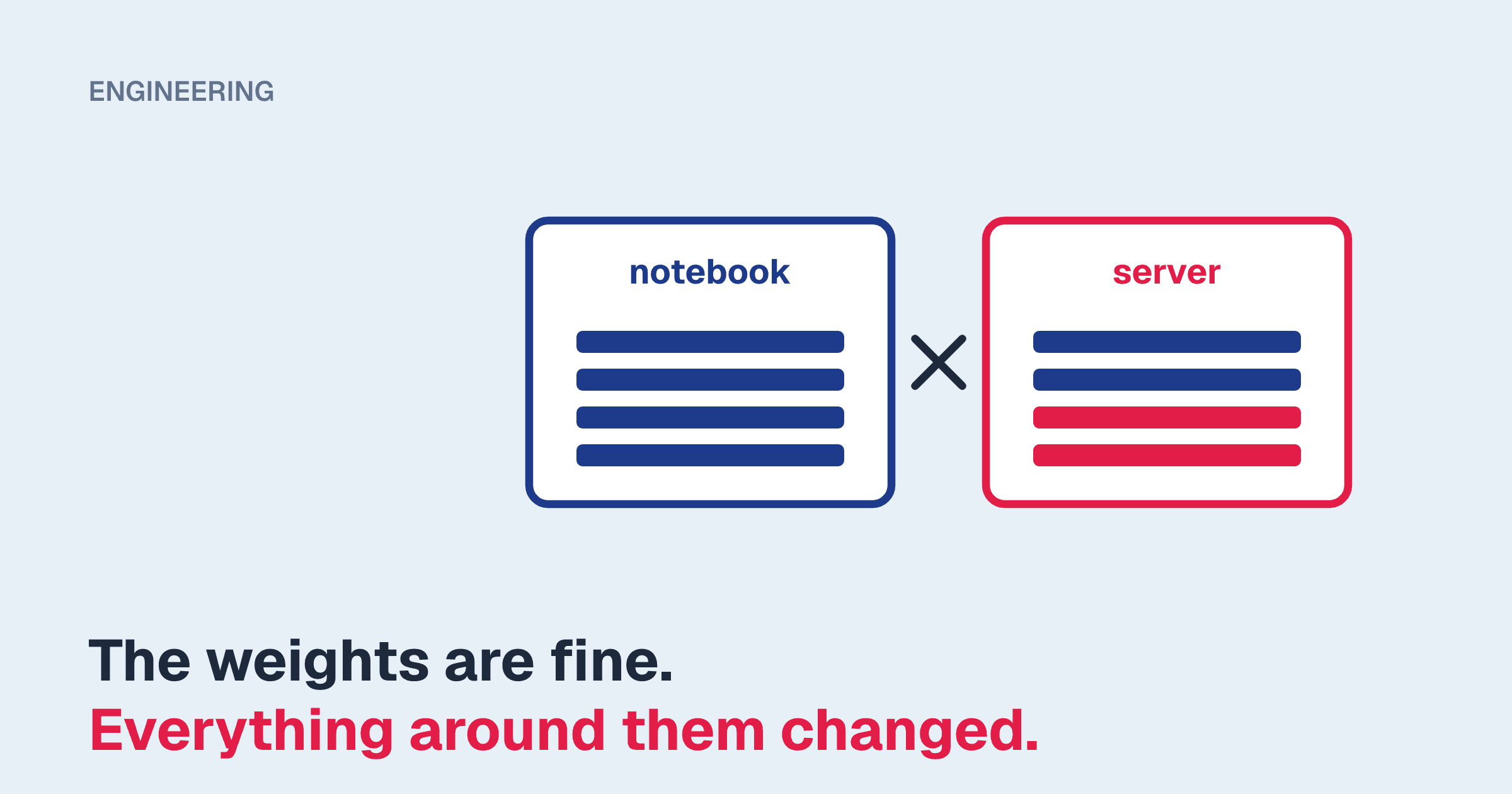
The short answer: the weights are almost certainly fine. What changed is everything around them. The notebook and the server are building different token sequences from the same conversation, or loading different weights from the same directory. A fine-tuned model is far more sensitive to this than a general-purpose one, because you trained it on one exact prompt format and it has seen nothing else.
There are six causes we see repeatedly, roughly in this order of frequency:
- The chat template applied at serving time is not the one used in training.
- The tokenizer differs: duplicated BOS tokens, a missing pad or EOS definition, or added tokens that never made it to the server.
- The LoRA adapter is not actually loaded, or was merged incorrectly.
- The application requests the wrong model name and silently gets the base model.
- The context length on the server is shorter than the prompts the application sends.
- Precision, quantization, or sampling defaults differ from the notebook.
Before going through them one by one, run the test that separates the first two causes from the rest.
The one diagnostic that matters: compare token IDs
Text comparisons hide the problem. Two prompts that look identical when printed can tokenize differently. Compare the integer token IDs the notebook feeds the model with the IDs the server feeds it.
In the notebook:
messages = [
    {"role": "system", "content": "You extract invoice fields as JSON."},
    {"role": "user", "content": "Invoice 4471 from Acme, total $1,250.00"},
]

ids = tokenizer.apply_chat_template(
    messages,
    add_generation_prompt=True,
    tokenize=True,
)
print(len(ids), ids[:12], ids[-12:])
print(repr(tokenizer.decode(ids)))
Against a vLLM server, the /tokenize endpoint accepts the same messages and returns what the server would actually feed the model:
curl -s http://localhost:8000/tokenize \
  -H "Content-Type: application/json" \
  -d '{
    "model": "invoice-extractor",
    "messages": [
      {"role": "system", "content": "You extract invoice fields as JSON."},
      {"role": "user", "content": "Invoice 4471 from Acme, total $1,250.00"}
    ]
  }'
If the two lists differ, you have a template or tokenizer problem (causes 1 and 2). If they are identical, move on to weights, naming, context, and sampling (causes 3 to 6).
Other servers have equivalents. With llama.cpp's llama-server, run with --verbose and read the rendered prompt in the log. With Ollama, ollama show --modelfile your-model prints the template it will apply.
1. Chat-template mismatch
This is the most common cause by a wide margin.
What happens. A chat model never sees your list of messages. It sees one string, produced by a Jinja template that wraps each message in role markers and special tokens. During fine-tuning, your training framework rendered every example through some template. At serving time, the server renders incoming requests through whatever template it finds. If those are different templates, the model receives a format it was never trained on.
How it goes wrong.
- You fine-tuned a base model, which ships with no chat template, and your training script supplied one (ChatML, Alpaca-style, or a custom format). The saved tokenizer does not include it, so the server falls back to a default or rejects chat requests.
- You trained with a hand-written prompt string such as
### Instruction: ... ### Response:and the application calls/v1/chat/completions, which applies the model's built-in template instead. - You exported to GGUF or imported into Ollama, and the conversion picked up a generic template rather than yours.
- The training framework overrode the template (several do this for convenience) but you saved only the adapter, so the server uses the original base tokenizer.
How to confirm. Open tokenizer_config.json in the directory the server loads and look at the chat_template field. Newer Transformers versions may store it in a separate chat_template.jinja file. Compare it to what your training run used:
print(tokenizer.chat_template)The fix. Make the training-time template the single source of truth. Set tokenizer.chat_template before training, call tokenizer.save_pretrained(output_dir) alongside the model, and serve from that directory. If you cannot change the saved files, pass the template explicitly:
vllm serve ./merged-model --chat-template ./training_template.jinjaIf you trained with a raw prompt string rather than a chat template, either call /v1/completions and build the identical string in your application, or write a Jinja template that reproduces that string exactly, including whitespace and newlines.
2. Tokenizer differences
The template can match and the token IDs can still differ.
Double BOS. Most chat templates emit the beginning-of-sequence token themselves. If your training code rendered the template to text and then tokenized that text with the default add_special_tokens=True, every training example started with two BOS tokens. The server sends one. The reverse also occurs. Either way the model sees a start it was not trained on. Check ids[:3] from the diagnostic above.
Pad token equals EOS token. Many fine-tuning tutorials set tokenizer.pad_token = tokenizer.eos_token because the base model has no pad token. With some data collators, every pad position is masked out of the loss, and because pad and EOS share an ID, the real EOS at the end of each example is masked too. The model never learns to stop. In the notebook you did not notice because max_new_tokens=200 cut it off. In the application, it generates until it reaches the server limit.
The wrong stop token. Several model families use one token to end a turn and a different one to end the document. Llama 3 is the well-known example, with <|eot_id|> closing a turn and <|end_of_text|> closing the sequence. If your training data ended turns with one and the server only stops on the other, generation runs past the answer. Look at eos_token_id in generation_config.json, which can be a list, and confirm the token your training examples end with is in it. As a stopgap, pass stop_token_ids or stop in the request. The real fix is making the config and the training data agree.
Added tokens. If you added special tokens and resized the embedding matrix, the server needs both the updated tokenizer and the resized embeddings. A LoRA adapter saved without the embedding layers does not carry them. Merging into a full checkpoint is the reliable path here.
3. The adapter is not loaded, or was merged badly
The symptom. Output reads like the base model: generic, chatty, ignoring your format entirely.
Serving the adapter dynamically. With vLLM, LoRA has to be switched on and the adapter registered under a name:
vllm serve meta-llama/Llama-3.1-8B-Instruct \
  --enable-lora \
  --lora-modules invoice-extractor=/models/adapters/invoice-v3 \
  --max-lora-rank 64
Two things to check. First, --max-lora-rank must be at least the r value in your adapter_config.json. The default is lower than the ranks many fine-tuning recipes use. Second, base_model_name_or_path in adapter_config.json must be the same model, and the same variant, that the server loads. An adapter trained on the Instruct model and applied to the base model will load without complaint and perform badly.
Merging the adapter. For a single fine-tune in production, we default to merging. It removes a class of runtime failure:
import torch
from transformers import AutoModelForCausalLM, AutoTokenizer
from peft import PeftModel

base = AutoModelForCausalLM.from_pretrained(
    "meta-llama/Llama-3.1-8B-Instruct",
    torch_dtype=torch.bfloat16,
)
model = PeftModel.from_pretrained(base, "/models/adapters/invoice-v3")
model = model.merge_and_unload()

model.save_pretrained("/models/merged/invoice-v3")
AutoTokenizer.from_pretrained("/models/adapters/invoice-v3").save_pretrained(
    "/models/merged/invoice-v3"
)
The detail that catches people: if you trained with QLoRA, do not merge into the 4-bit base. Reload the base in bfloat16 or float16, merge into that, and quantize afterwards if you need to. Merging into quantized weights either fails or produces a model that is measurably worse than what you evaluated.
Note that the tokenizer is loaded from the adapter directory, not the base model, so the training-time chat template travels with the merged checkpoint.
4. The application asks for the wrong model name
What happens. With --enable-lora, vLLM serves the base model and each adapter as separate model names. If your application sends "model": "meta-llama/Llama-3.1-8B-Instruct", it gets the base model, with no error, because that is a valid model on that server. The adapter is only applied when the request names it.
How to confirm. List what the server exposes and compare it to the string in your application config:
curl -s http://localhost:8000/v1/models | python -m json.toolThe fix. For a merged model, set a stable alias so the application does not depend on a filesystem path:
vllm serve /models/merged/invoice-v3 --served-model-name invoice-extractorThen log the model field from each response in your application. It costs nothing, and it turns "the model seems worse today" into a question you can answer.
5. Context-length limits
What happens. Notebook tests use short examples. The application sends a system prompt, retrieved documents, conversation history, and the user message. The total exceeds what the server was configured for.
Servers handle this differently, which is why the symptoms vary:
- vLLM rejects the request with a 400 error stating that the prompt plus
max_tokensexceeds the maximum context length. This is loud, which is good, but if your application swallows errors and retries it looks like a hang. - Ollama and other llama.cpp-based runtimes default to a context window well below the model's maximum and truncate the prompt to fit. Nothing fails. The model just stops following instructions, because the system prompt at the top was the part that got cut.
How to confirm. Log usage.prompt_tokens from responses and compare it to the server setting. In vLLM that is --max-model-len. In Ollama it is num_ctx. In llama.cpp it is -c.
The fix. Set the context length explicitly, to a value you have tested, rather than accepting the default. Raising it costs KV-cache memory, so on a constrained GPU it trades against concurrency. Also check the other direction: if you fine-tuned with a max_seq_length of 2,048 and the application sends 12,000-token prompts, the model is operating outside anything it saw in training, whatever the server allows.
6. Precision, quantization, and sampling defaults
Sampling. A notebook call to model.generate() with no sampling arguments is greedy decoding unless the model's generation config says otherwise, and most fine-tuning notebooks test that way. An OpenAI-compatible endpoint with no arguments typically samples at temperature 1.0, and recent vLLM versions also read default sampling parameters from the model's generation_config.json. For an extraction or classification fine-tune, that difference alone can explain "it was accurate in the notebook." Set temperature, top_p, and max_tokens explicitly in every request. Do not rely on defaults on either side.
Precision. Training in bfloat16 and serving in float16 occasionally causes overflow in models with large activation ranges. If outputs degrade into repeated tokens or nonsense, set --dtype bfloat16 on the server and retest.
Quantization. If you evaluated the bfloat16 model in the notebook and deployed an AWQ, GPTQ, or 4-bit GGUF version, you deployed a different model. Narrow fine-tunes can lose more from quantization than general benchmarks suggest, because the behavior you trained is a small adjustment on top of the base weights. Run your evaluation set against the quantized artifact, not its parent.
Symptom to cause, at a glance
| What you see in the application | Check first |
|---|---|
| Output reads like the untouched base model | Adapter not loaded (3), wrong model name (4) |
| Right content, wrong format or extra chatter | Chat template (1), sampling defaults (6) |
| Never stops, or repeats the answer | EOS and pad tokens, stop tokens (2) |
| Fine on short inputs, poor on long ones | Context length and truncation (5) |
| Slightly worse across the board | Quantization or dtype (6), double BOS (2) |
| HTTP 404 "model does not exist" | Served model name (4) |
| HTTP 400 on long requests | --max-model-len (5) |
Preventing it next time
The underlying issue is that the notebook and the server are two separate implementations of "turn a conversation into tokens and run the model." The fix is to treat one as authoritative and test the other against it.
- Save the tokenizer, chat template, and generation config with the model, from the training run, every time.
- Evaluate through the serving stack. Run your held-out examples through the same HTTP endpoint the application will call, not through
model.generate(). If the score through the endpoint is lower than the score in the notebook, you have found the problem before your users did. - Keep a parity test of a handful of fixed prompts, and assert that notebook token IDs equal server token IDs. Run it whenever the serving image, the model, or the template changes.
- Pin the serving engine version. Template handling and default sampling behavior have both changed between releases of the popular engines.
Evaluating through the endpoint is also the first of the three measurements we expect every production LLM system to have. If you are choosing hardware for the fine-tuned model and want to know how much context and concurrency it can carry, the Blueprint planner will do the memory math for you.